Legacy Documentation
UML sequence diagrams
First create a document with “UML Sequence” style (see also below a command driven way to create sequence diagrams).
The editor for sequence diagrams consists of 2 parts: an outline and graphic image. How to create a sequence diagram.
- Create two or more timelines:
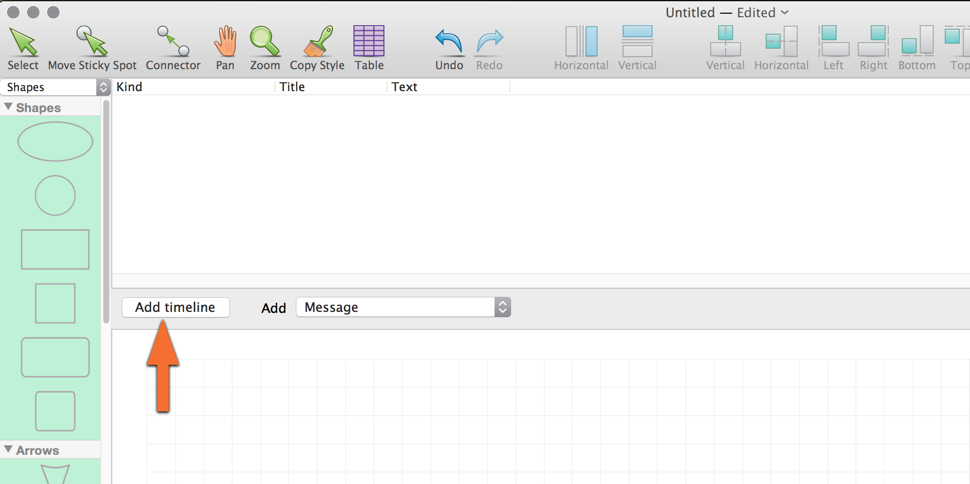
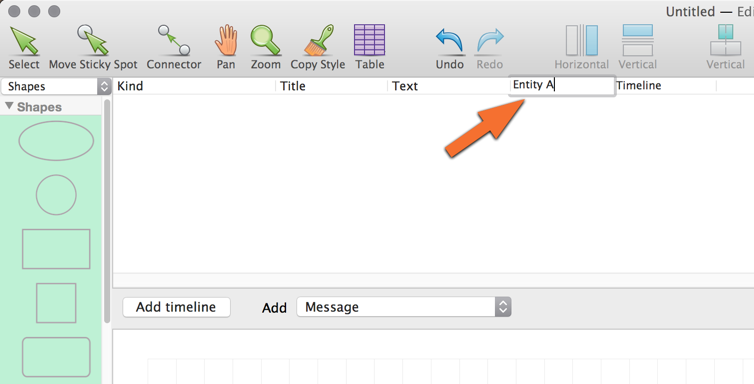
- Double click a timeline caption to rename it:
- Right-click a sequence area to add a message:
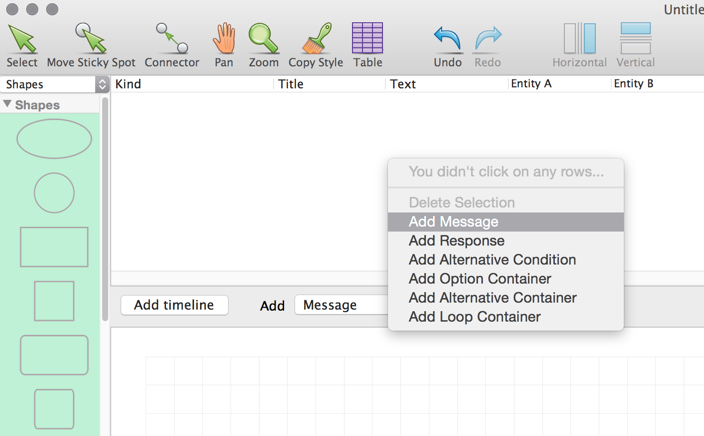
(or select Add Message from the drop down menu).
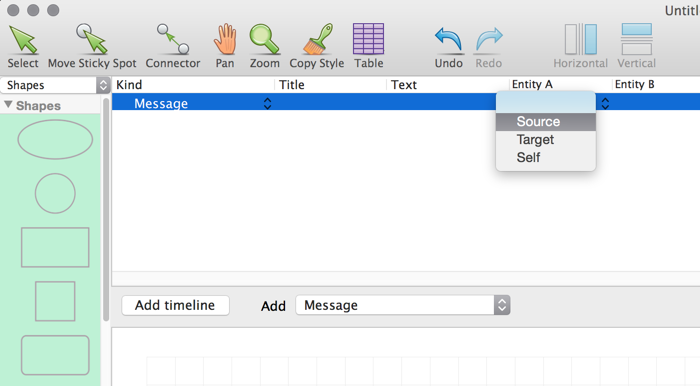
- Select where the source and target are:
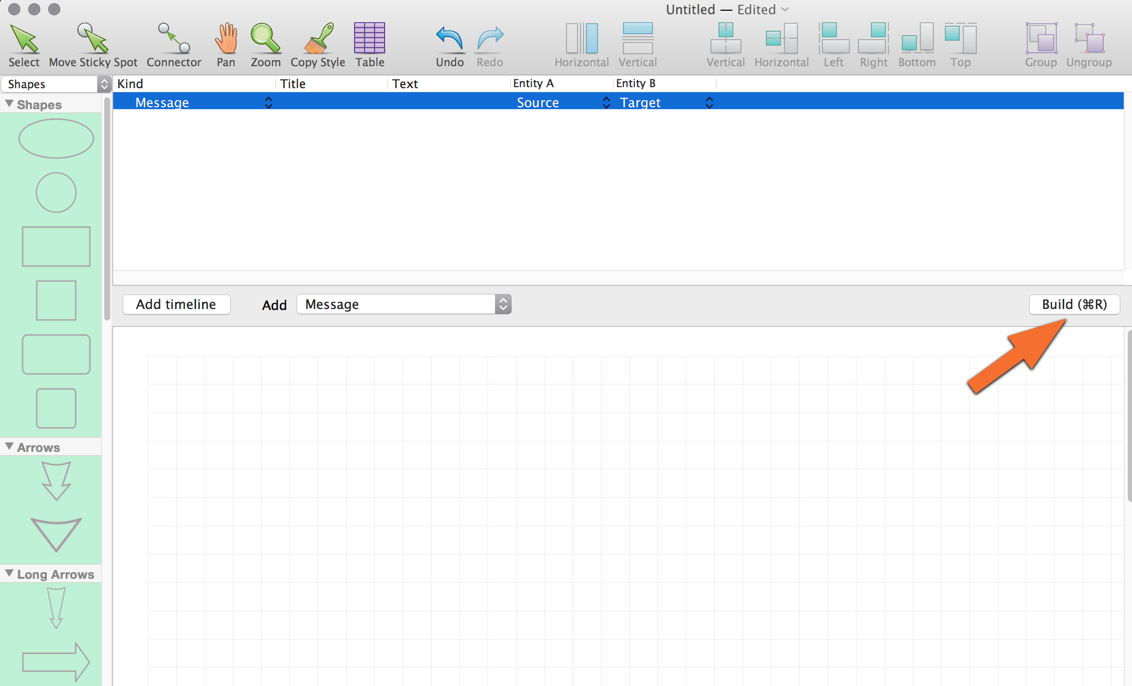
- Build the diagram (Cmd+R):
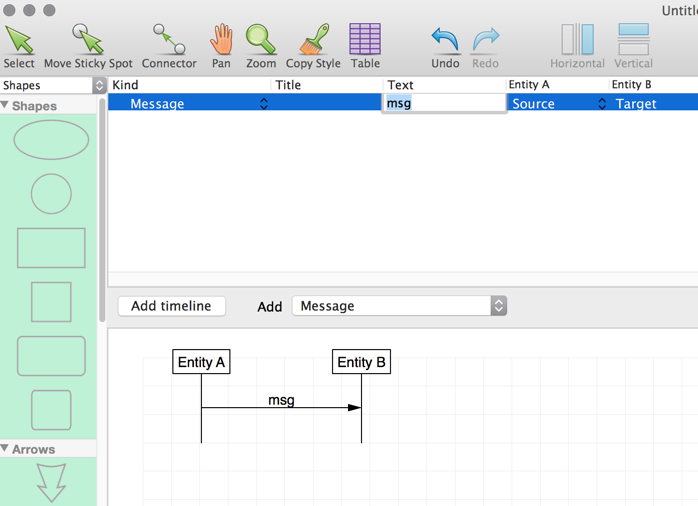
- Double click a Text cell to add a message:
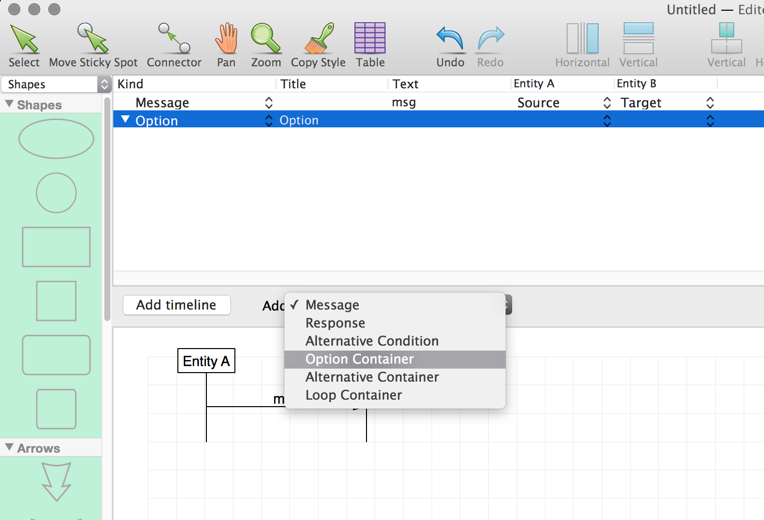
Then you can add other messages or containers:
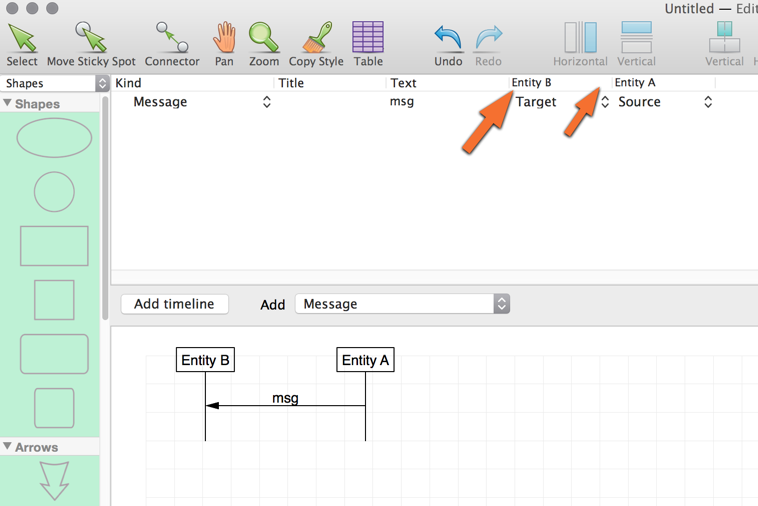
Drag messages to drop it into a container or change the order. Rebuild the diagram to see result. You can also drag and drop timeline columns:
For containers you can change a title:
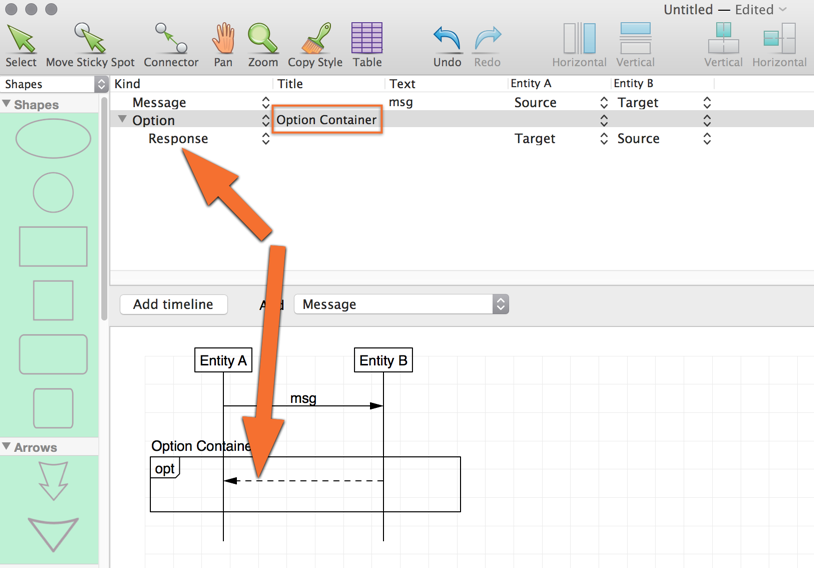
There is also an option to switch between message and response.
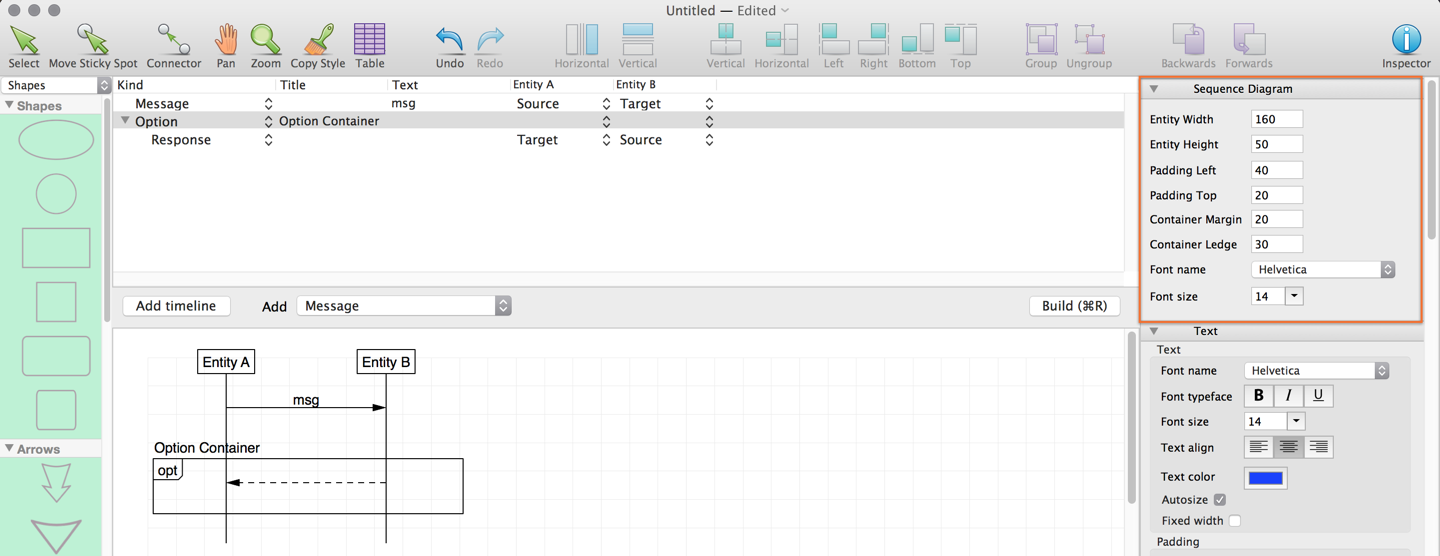
You can change visual properties of a diagram as usual and they will be kept after re-build. See some Preferences in the Inspector: