Suporte a Mermaid
O Diagrammix3 suporta importação e exportação de diagramas usando a sintaxe Mermaid, uma popular linguagem de diagramação baseada em texto.
O que é Mermaid?
Mermaid é uma ferramenta de diagramação baseada em JavaScript que usa uma sintaxe semelhante ao Markdown para definir diagramas. É comumente usada em documentação, wikis e arquivos README.
Exemplo de sintaxe Mermaid:
flowchart LR
    A[Start] --> B{Decision}
    B -->|Yes| C[Action]
    B -->|No| D[End]
Importando Diagramas Mermaid
Nota: A importação e exportação Mermaid são um recurso PRO.
Insert Mermaid (com pré-visualização e validação)
A forma mais rápida de trazer um diagrama Mermaid para a sua tela é o painel Insert Mermaid, que pré-visualiza e valida o diagrama antes de qualquer coisa ser colocada.
- Vá em Edit → Insert Mermaid
- Cole ou digite sua sintaxe Mermaid no editor
- Enquanto você digita, o Diagrammix valida a sintaxe e a faixa de status mostra o problema ou Valid · N nodes, M connectors. Você também pode clicar em Validate a qualquer momento
- Clique em Apply para colocar o diagrama, ou Cancel para descartar. Apply só coloca um diagrama que seja válido
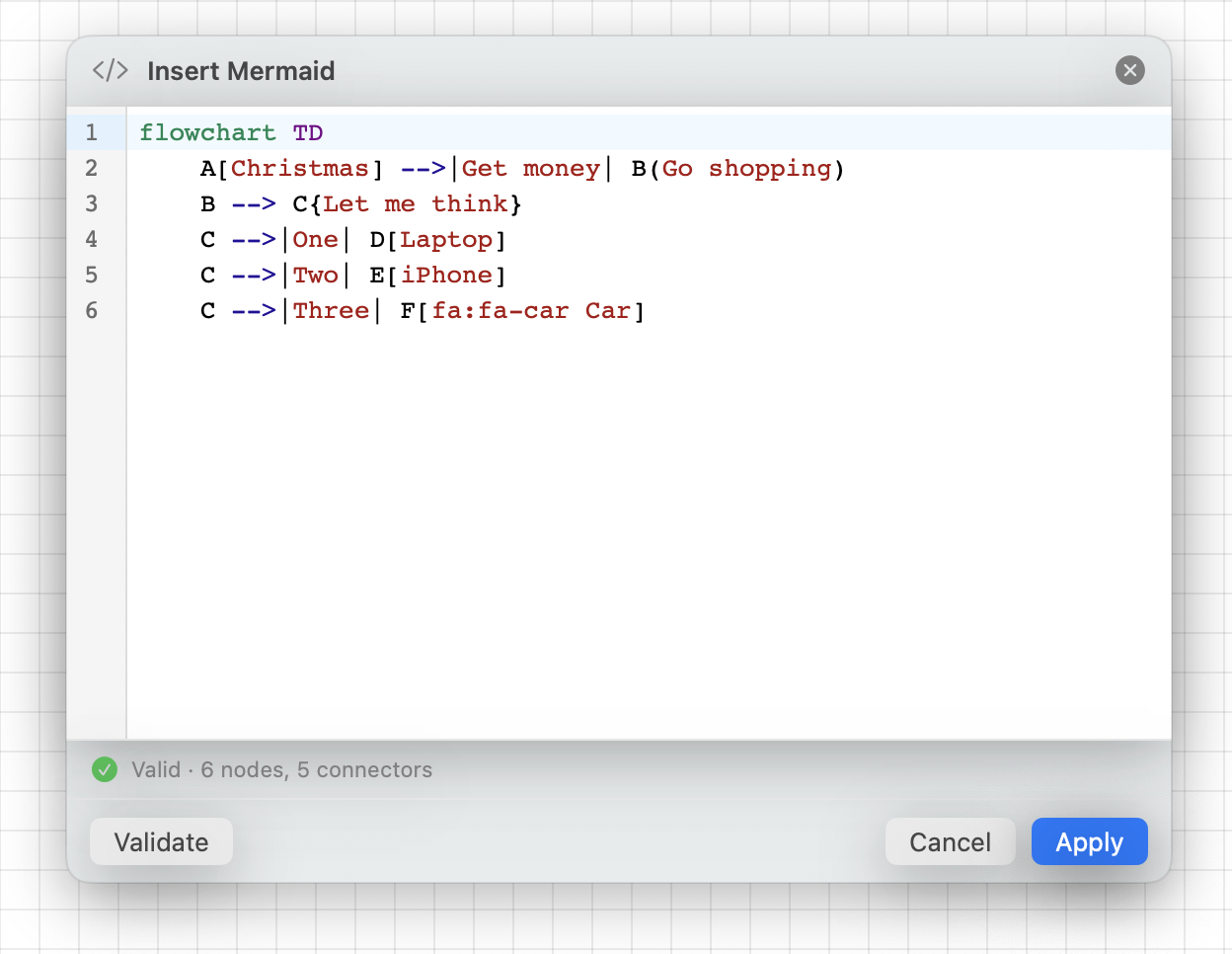
Colar Mermaid da área de transferência passa pela mesma validação, então uma sintaxe malformada nunca produz um diagrama quebrado.
Nota: O Mermaid é importado colando ou digitando no painel Insert Mermaid — não há um comando separado de "importar arquivo". Para trazer um arquivo
.mmd, abra-o em qualquer editor de texto e cole seu conteúdo.
Tipos de Diagrama Suportados
O Diagrammix reconhece uma ampla variedade de tipos de diagrama Mermaid, incluindo:
| Tipo Mermaid | Conversão no Diagrammix |
|---|---|
flowchart / graph | Fluxograma com formas e conectores |
sequenceDiagram | Diagrama de sequência UML |
classDiagram | Diagrama de classes UML |
stateDiagram | Diagrama de máquina de estados |
erDiagram | Diagrama de entidade-relacionamento |
mindmap | Mapa mental |
gantt | Gráfico de Gantt |
pie | Gráfico de pizza |
Outros tipos Mermaid (timeline, user journey, quadrant, XY chart, Sankey, Git graph, e mais) são reconhecidos e importados, mas são renderizados como um grafo genérico de nós e conectores em vez de um layout especializado. Use Validate para verificar as contagens de nós e conectores antes de aplicar.
Sintaxe de Diagrama de Estados
Diagramas de estado modelam os estados em que um objeto pode estar e as transições entre estados.
Diagrama de Estado Básico:
stateDiagram-v2
    [*] --> Active
    Active --> Inactive : deactivate
    Inactive --> Active : activate
    Active --> [*] : terminate
Estados e Transições:
[*]representa os estados inicial e final-->cria uma seta de transição: labeladiciona rótulos de transição- Estados aninhados usam indentação
Estados Compostos:
stateDiagram-v2
    state Processing {
        [*] --> Validating
        Validating --> Executing
        Executing --> [*]
    }
Resultado: Um diagrama de máquina de estados com formas de estado apropriadas e transições rotuladas.
Exemplos de Importação
Fluxograma
Entrada Mermaid:
flowchart TD
    A[Hard edge] -->|Link text| B(Round edge)
    B --> C{Decision}
    C -->|One| D[Result one]
    C -->|Two| E[Result two]
Resultado: Um fluxograma de cima para baixo com formas de retângulo, retângulo arredondado e losango, conectadas por setas rotuladas.
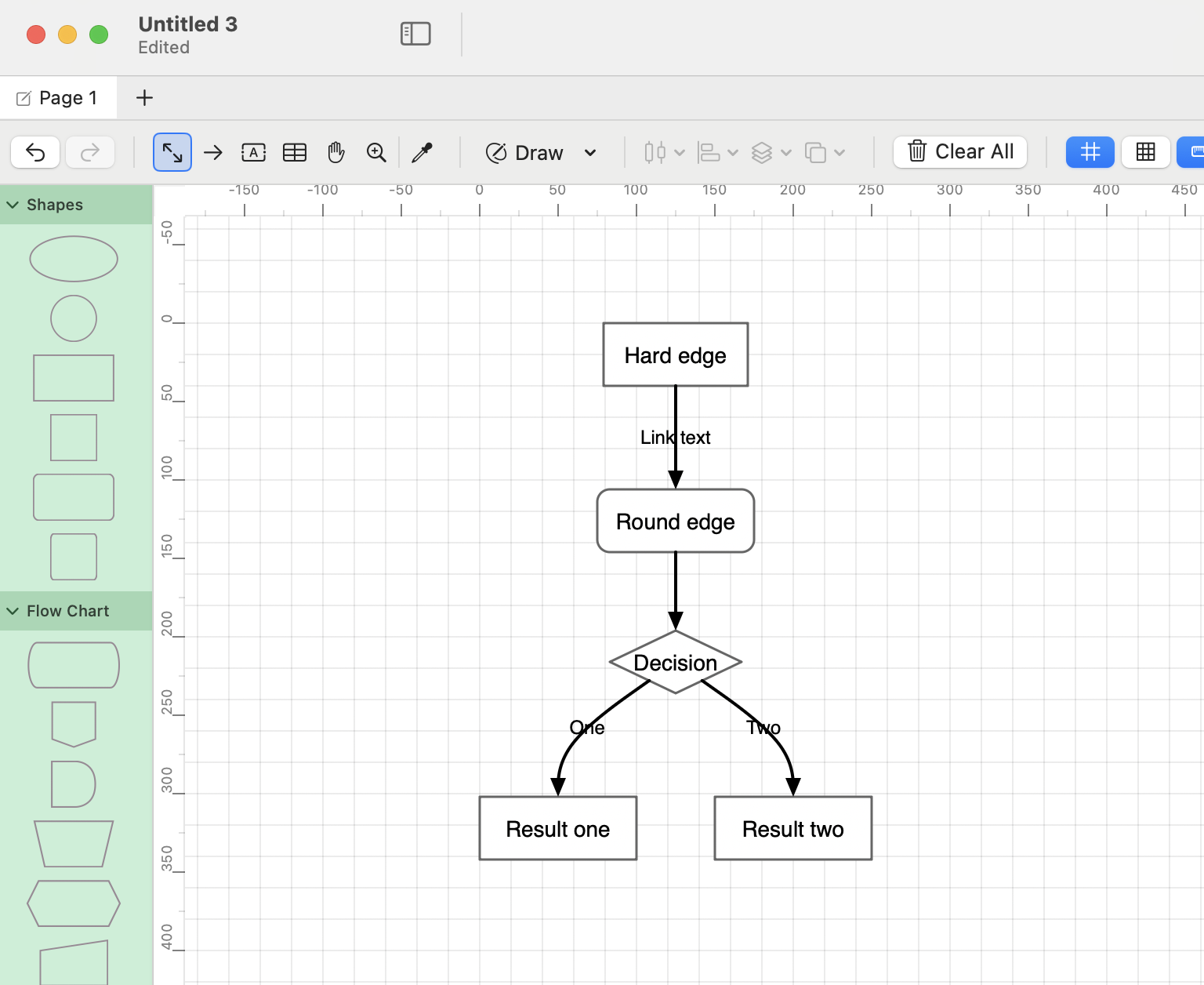
Diagrama de Sequência
Entrada Mermaid:
sequenceDiagram
    participant A as Alice
    participant B as Bob
    A->>B: Hello Bob!
    B-->>A: Hi Alice!
Resultado: Um diagrama de sequência com dois participantes e setas de mensagem.
Diagrama de Classes
Entrada Mermaid:
classDiagram
    Animal <|-- Duck
    Animal <|-- Fish
    Animal : +int age
    Animal : +String gender
    Animal: +isMammal()
Resultado: Um diagrama de classes UML com relacionamentos de herança.
Exportando para Mermaid
Copy Mermaid
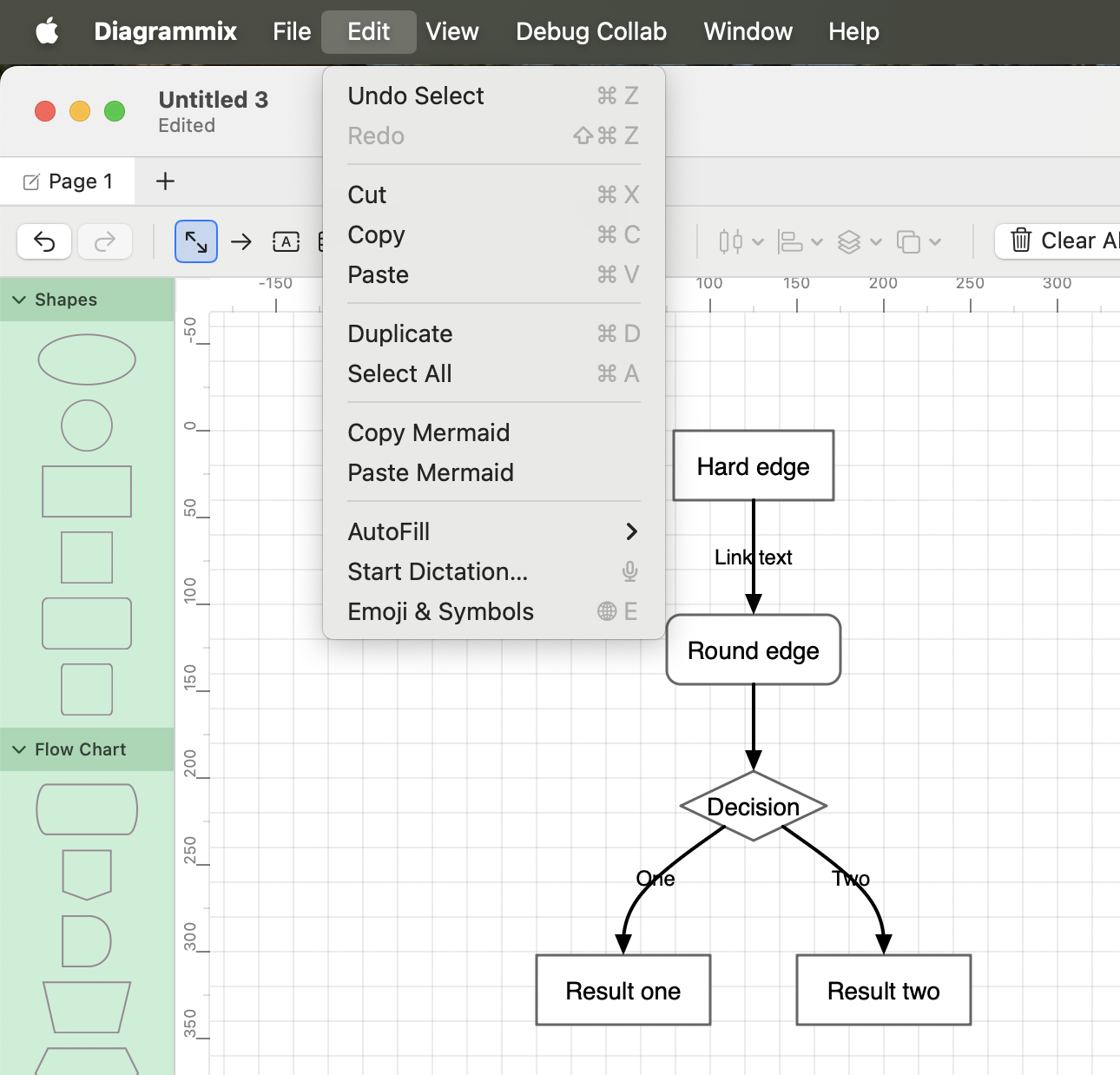
O Diagrammix exporta para Mermaid pela área de transferência — não há um comando separado de "exportar para arquivo".
- Selecione as formas que deseja exportar, ou não selecione nada para exportar a tela inteira
- Vá em Edit → Copy Mermaid
- Cole a sintaxe Mermaid onde precisar dela (depois salve como um arquivo
.mmd, se desejar)
A exportação se adapta ao que está no escopo: um mapa mental é copiado como sintaxe mindmap, e uma página de classes ou sequência UML como classDiagram / sequenceDiagram; qualquer outra coisa é exportada como um flowchart.
Continue Editando em Mermaid (Ciclo Completo)
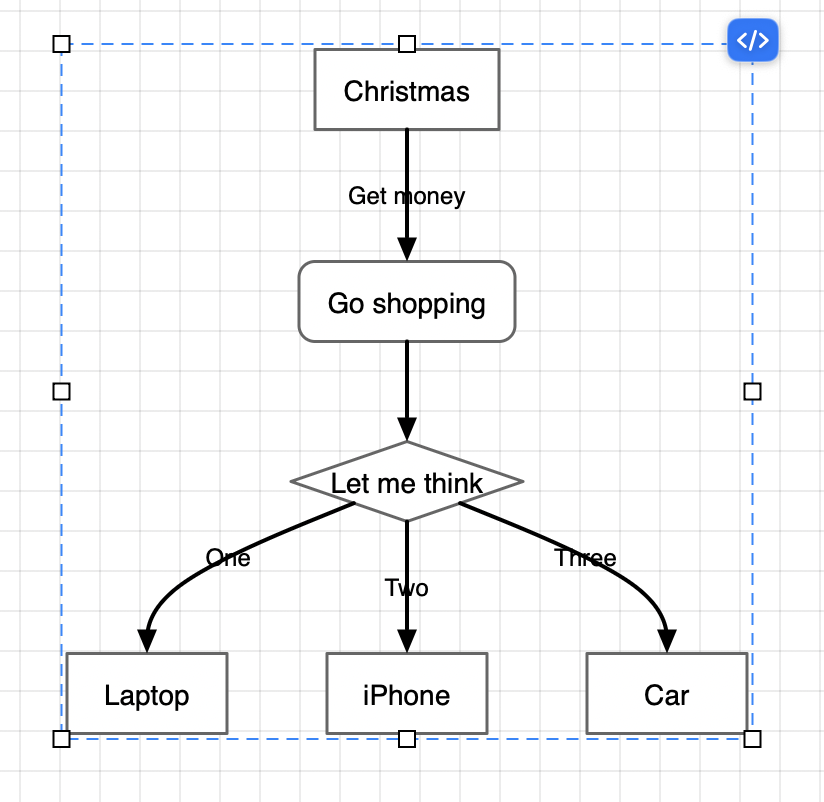
Diagramas Mermaid importados mantêm sua origem, para que você possa continuar trabalhando em notação Mermaid em vez de editar formas uma a uma.
- Selecione um diagrama Mermaid importado
- Clique no botão
</>(Edit Mermaid Source) no diagrama - O painel Edit Mermaid Source se abre com o texto Mermaid original já preenchido
- Edite o texto e clique em Re-render para atualizar o diagrama no local
Se você alterou o diagrama na tela desde que ele foi importado, o painel lista essas alterações em On-canvas edits that won't be kept, para que você possa decidir antes de renderizar novamente.
Editando como Objetos Nativos
Você também pode editar um diagrama importado diretamente como objetos nativos do Diagrammix:
- Mover e redimensionar formas livremente
- Alterar estilos usando o Inspetor (cores, fontes, estilos de linha)
- Adicionar novos elementos usando as ferramentas do Diagrammix
- Modificar conexões arrastando as extremidades
- Aplicar layout automático para reorganizar o diagrama
Dica: Decida com antecedência como você quer manter um diagrama. Use o editor de origem
</>para mantê-lo controlado pelo Mermaid, ou edite as formas diretamente para um ajuste visual pontual. Edições manuais extensas podem divergir do que renderizar novamente a origem produziria.
Limitações
- Estilização complexa: as diretivas de estilo do Mermaid podem não ser totalmente convertidas
- Subgrafos: convertidos em formas agrupadas
- Recursos avançados: alguns recursos específicos do Mermaid (como manipuladores de clique) são ignorados
- Ciclo completo: exportar um diagrama que você editou manualmente de forma extensa pode não reproduzir a sintaxe Mermaid idêntica — para ciclos completos, prefira o editor de origem
</>
Dicas
- Organize após a importação: use o layout automático para organizar diagramas importados
- Verifique os relacionamentos: confirme se os tipos de relacionamento foram importados corretamente
- Estilize de forma consistente: aplique estilos do Diagrammix para um visual mais elaborado
- Mantenha a origem: salve seus arquivos Mermaid originais para controle de versão