Mermaid Support
Diagrammix3 supports importing and exporting diagrams using Mermaid syntax, a popular text-based diagramming language.
What is Mermaid?
Mermaid is a JavaScript-based diagramming tool that uses a markdown-like syntax to define diagrams. It's commonly used in documentation, wikis, and README files.
Example Mermaid syntax:
flowchart LR
    A[Start] --> B{Decision}
    B -->|Yes| C[Action]
    B -->|No| D[End]
Importing Mermaid Diagrams
Note: Mermaid import and export are a PRO feature.
Insert Mermaid (with preview & validation)
The fastest way to bring Mermaid onto your canvas is the Insert Mermaid panel, which previews and validates the diagram before anything is placed.
- Go to Edit → Insert Mermaid
- Paste or type your Mermaid syntax into the editor
- As you type, Diagrammix validates the syntax and the status strip shows either the problem or Valid · N nodes, M connectors. You can also click Validate at any time
- Click Apply to place the diagram, or Cancel to dismiss. Apply only places a diagram that is valid
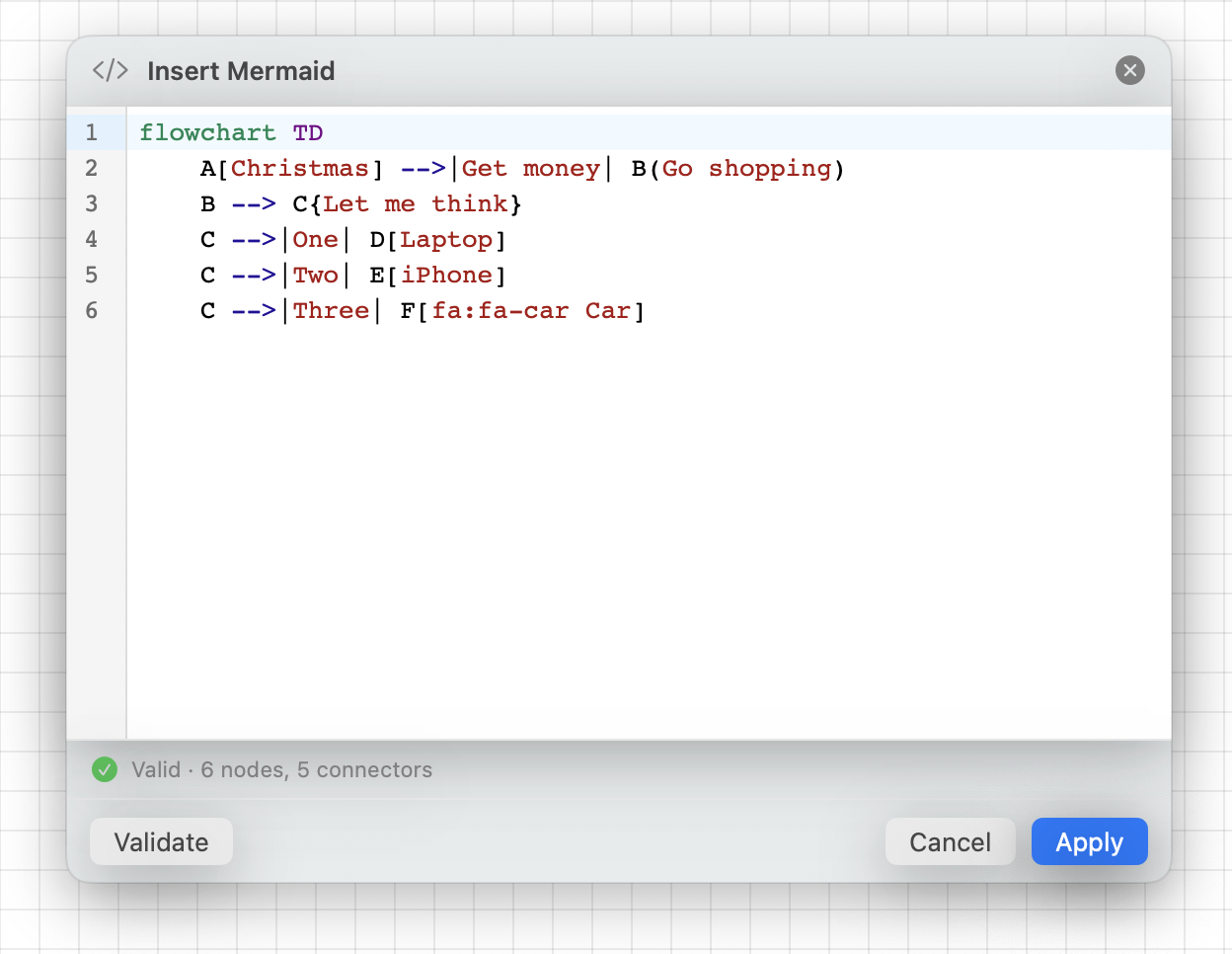
Pasting Mermaid from the clipboard runs through the same validation, so malformed syntax never produces a broken diagram.
Note: Mermaid is imported by pasting or typing into the Insert Mermaid panel — there is no separate "import file" command. To bring in a
.mmdfile, open it in any text editor and paste its contents.
Supported Diagram Types
Diagrammix recognizes a wide range of Mermaid diagram types, including:
| Mermaid Type | Diagrammix Conversion |
|---|---|
flowchart / graph | Flow chart with shapes and connectors |
sequenceDiagram | UML sequence diagram |
classDiagram | UML class diagram |
stateDiagram | State machine diagram |
erDiagram | Entity-relationship diagram |
mindmap | Mind map |
gantt | Gantt chart |
pie | Pie chart |
Other Mermaid types (timeline, user journey, quadrant, XY chart, Sankey, Git graph, and more) are recognized and imported, but render as a generic node-and-connector graph rather than a specialized layout. Use Validate to check the node and connector counts before you apply.
State Diagram Syntax
State diagrams model the states an object can be in and transitions between states.
Basic State Diagram:
stateDiagram-v2
    [*] --> Active
    Active --> Inactive : deactivate
    Inactive --> Active : activate
    Active --> [*] : terminate
States and Transitions:
[*]represents start and end states-->creates a transition arrow: labeladds transition labels- Nested states use indentation
Composite States:
stateDiagram-v2
    state Processing {
        [*] --> Validating
        Validating --> Executing
        Executing --> [*]
    }
Result: A state machine diagram with proper state shapes and labeled transitions.
Import Examples
Flowchart
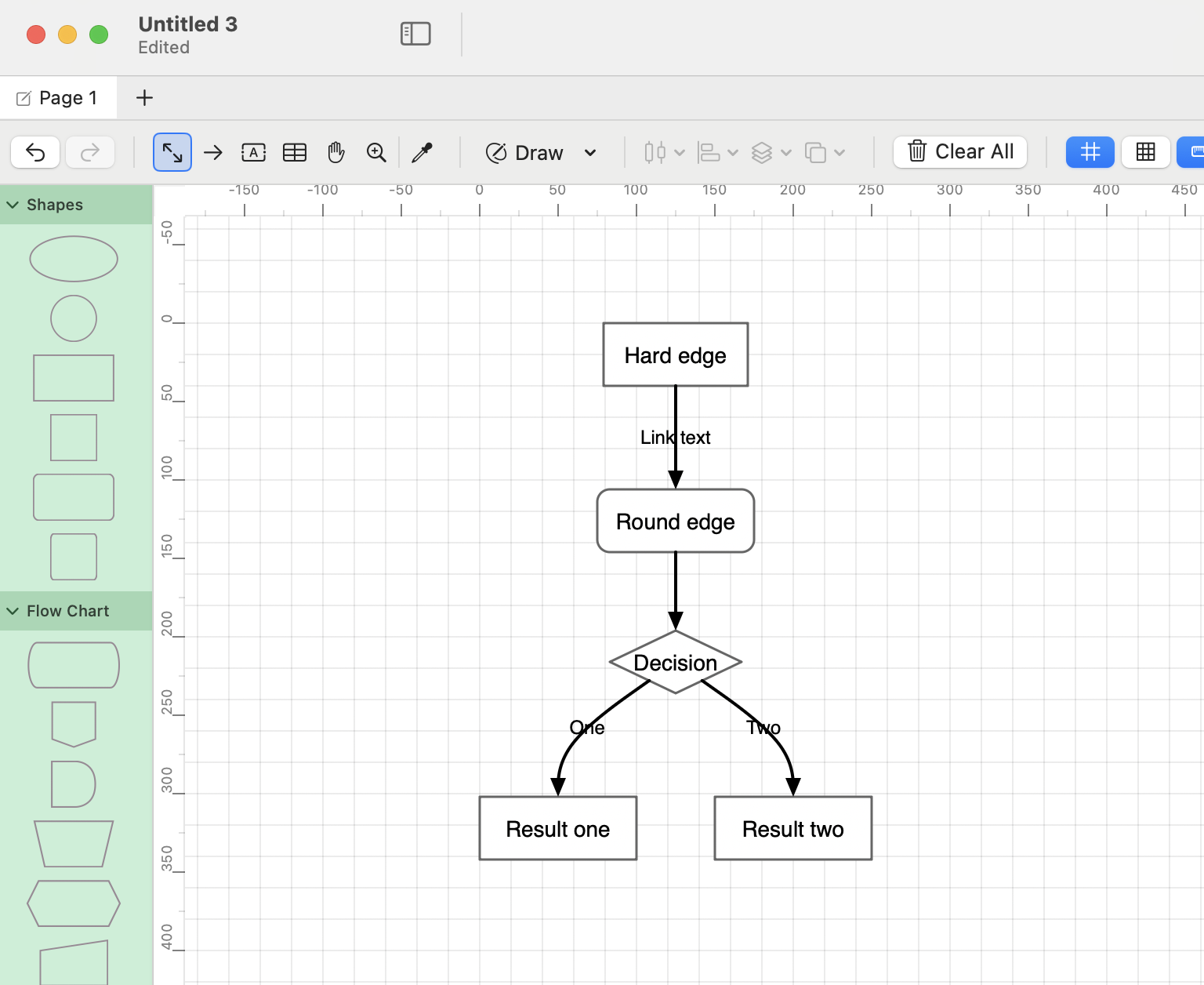
Mermaid Input:
flowchart TD
    A[Hard edge] -->|Link text| B(Round edge)
    B --> C{Decision}
    C -->|One| D[Result one]
    C -->|Two| E[Result two]
Result: A top-down flowchart with rectangle, rounded rectangle, and diamond shapes connected with labeled arrows.
Sequence Diagram
Mermaid Input:
sequenceDiagram
    participant A as Alice
    participant B as Bob
    A->>B: Hello Bob!
    B-->>A: Hi Alice!
Result: A sequence diagram with two participants and message arrows.
Class Diagram
Mermaid Input:
classDiagram
    Animal <|-- Duck
    Animal <|-- Fish
    Animal : +int age
    Animal : +String gender
    Animal: +isMammal()
Result: A UML class diagram with inheritance relationships.
Exporting to Mermaid
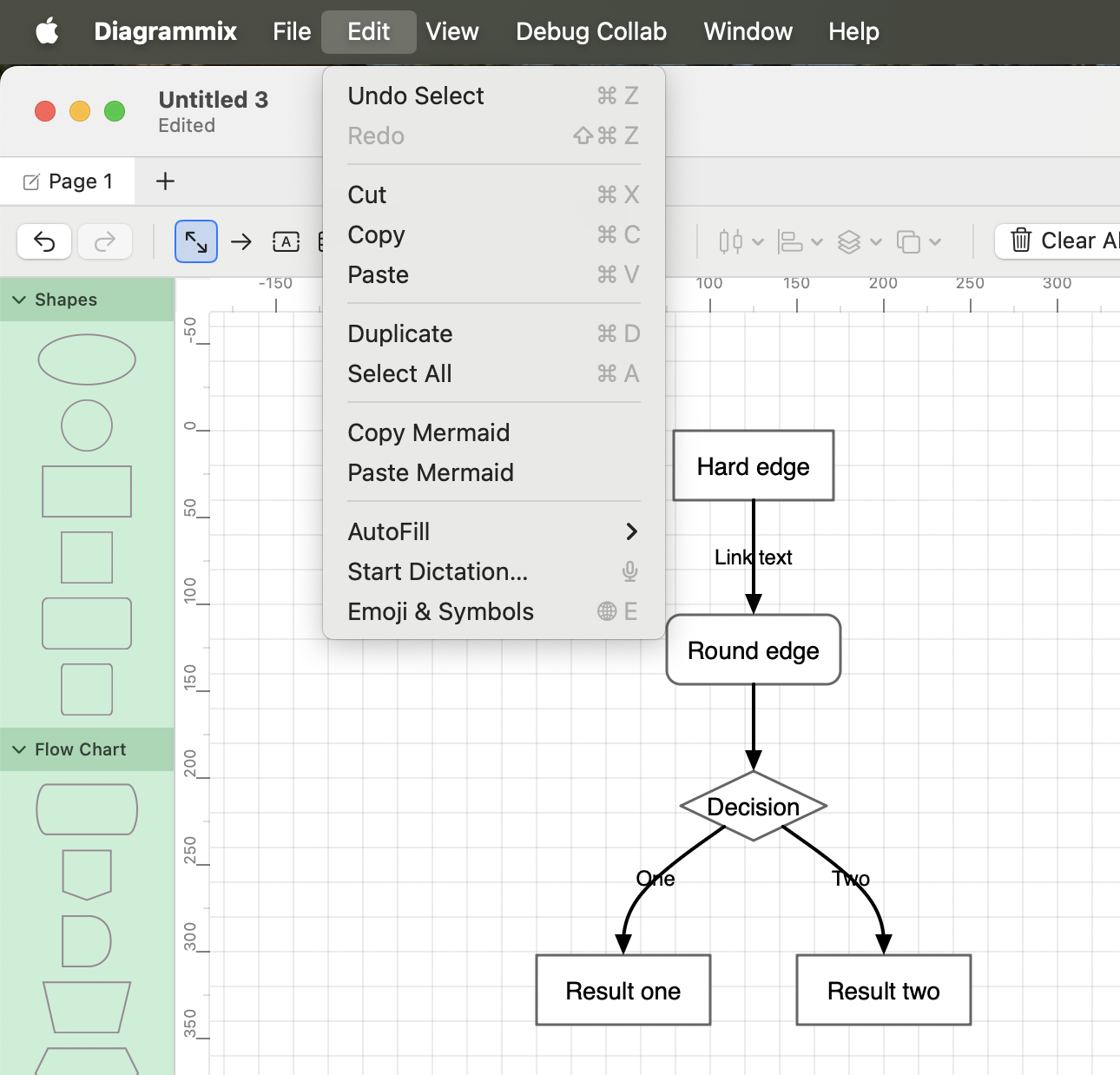
Copy Mermaid
Diagrammix exports to Mermaid through the clipboard — there is no separate "export to file" command.
- Select the shapes you want to export, or leave nothing selected to export the whole canvas
- Go to Edit → Copy Mermaid
- Paste the Mermaid syntax wherever you need it (then save it as a
.mmdfile if you like)
The export adapts to what's in scope: a mind map is copied as mindmap syntax and a UML class or sequence page as classDiagram / sequenceDiagram; anything else is exported as a flowchart.
Keep Editing in Mermaid (Round-Trip)
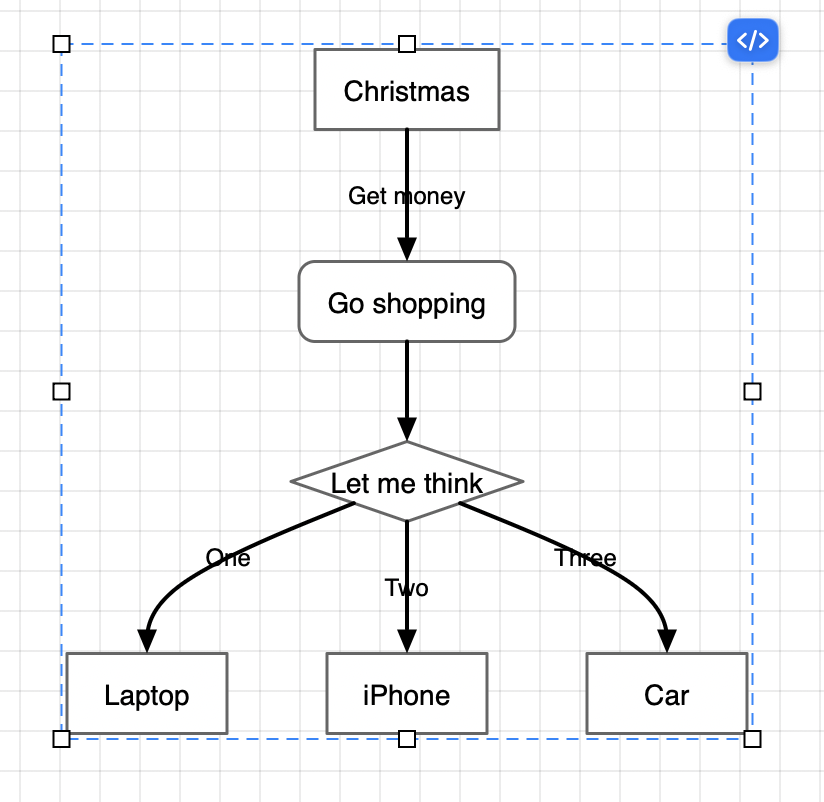
Imported Mermaid diagrams keep their source, so you can keep working in Mermaid notation instead of editing shapes one by one.
- Select an imported Mermaid diagram
- Click the
</>(Edit Mermaid Source) button on the diagram - The Edit Mermaid Source panel opens with the original Mermaid text pre-filled
- Edit the text and click Re-render to update the diagram in place
If you've changed the diagram on the canvas since it was imported, the panel lists those changes under On-canvas edits that won't be kept, so you can decide before re-rendering.
Editing as Native Objects
You can also edit an imported diagram directly as native Diagrammix objects:
- Move and resize shapes freely
- Change styles using the Inspector (colors, fonts, line styles)
- Add new elements using Diagrammix tools
- Modify connections by dragging endpoints
- Apply auto-layout to reorganize the diagram
Tip: Decide up front how you want to maintain a diagram. Use the
</>source editor to keep it Mermaid-driven, or edit shapes directly for a one-off visual polish. Heavy manual edits can diverge from what re-rendering the source would produce.
Limitations
- Complex styling: Mermaid styling directives may not fully translate
- Subgraphs: Converted to grouped shapes
- Advanced features: Some Mermaid-specific features (like click handlers) are ignored
- Round-trip: Exporting a diagram you've heavily edited by hand may not reproduce identical Mermaid syntax — for round-trips, prefer the
</>source editor
Tips
- Clean up after import: Use auto-layout to organize imported diagrams
- Check relationships: Verify that relationship types imported correctly
- Style consistently: Apply Diagrammix styles for a polished look
- Keep the source: Save your original Mermaid files for version control