Auto-Layout

Diagrammix3 includes a powerful auto-layout feature that automatically arranges your diagram elements for optimal readability. It offers several layout algorithms — from the classic Sugiyama hierarchical layout to tree, radial, circular, force-directed, and grid arrangements — so you can pick the one that best fits your diagram.

When to Use Auto-Layout

Auto-layout is helpful when:

  • You've imported a diagram from Mermaid or another format
  • Your diagram has become messy after many edits
  • You want to quickly organize a large number of elements
  • You're starting from a rough sketch and want a clean layout

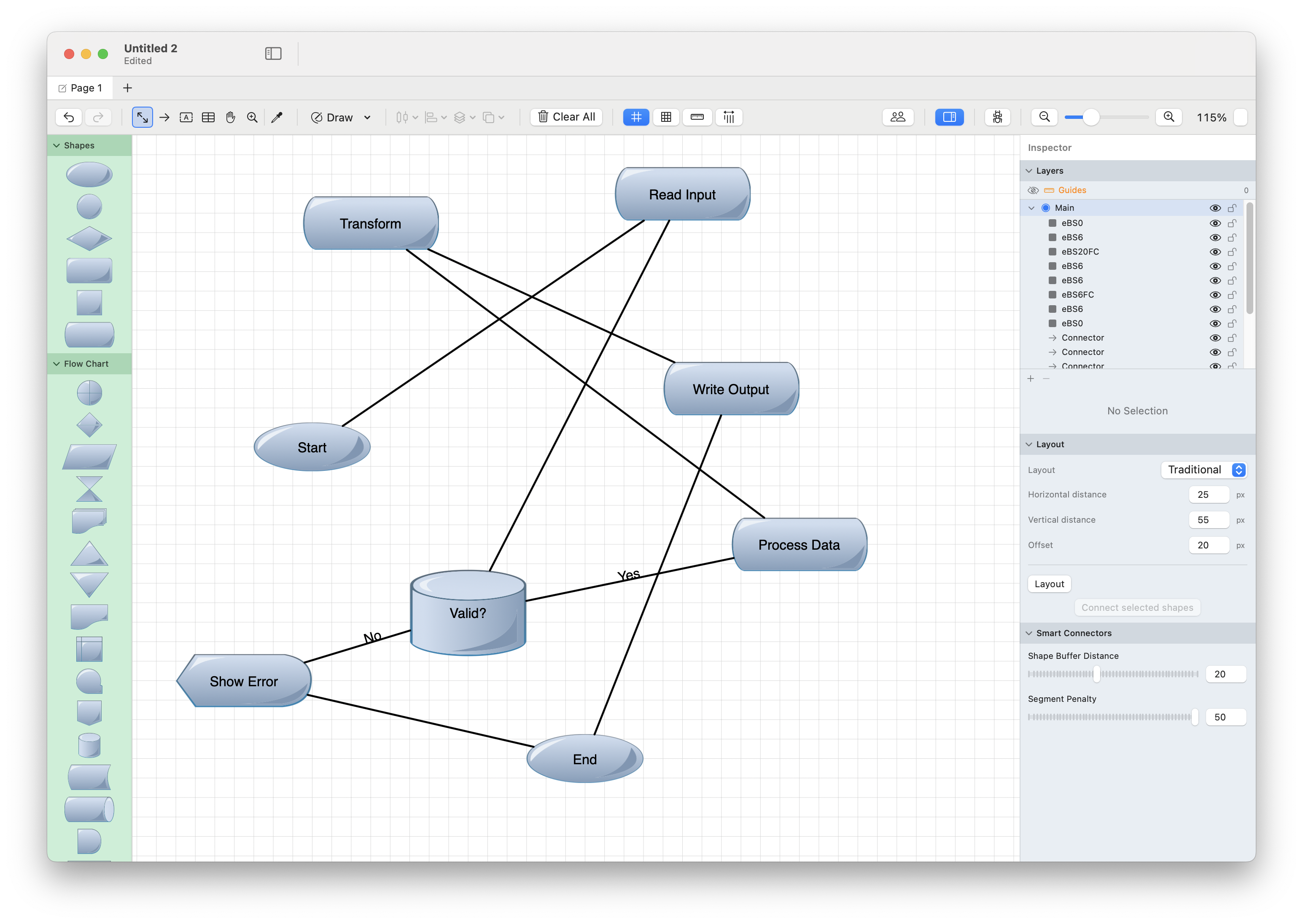
Before Auto-Layout

Applying Auto-Layout

From the Menu

  1. Select the shapes you want to organize (or select all with Cmd+A)
  2. Go to Arrange → Auto-Layout
  3. The selected elements will be rearranged

From the Toolbar

Click the Auto-Layout button in the arrangement toolbar (grid icon).

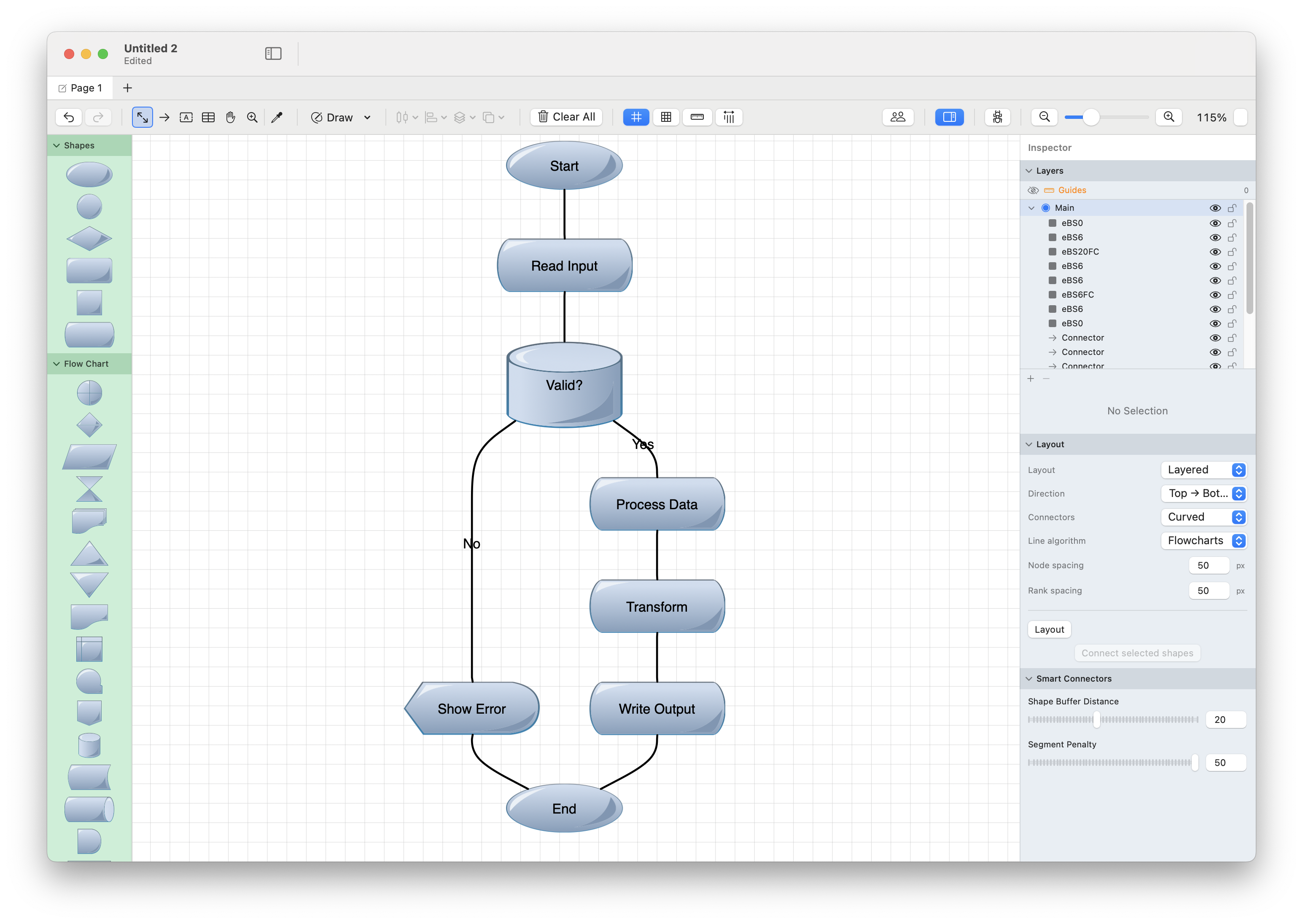
After Auto-Layout

Layout Algorithms

Beyond the classic hierarchical layout, Diagrammix offers a range of layout algorithms. Choose the one that matches the shape of your data:

AlgorithmBest For
Hierarchical (Sugiyama)Flowcharts, org charts, dependency graphs — layered, directed structures
LayeredDirected graphs where you want explicit control over the flow direction
TreeStrict parent → child hierarchies
RadialHierarchies radiating from a central root
CircularNodes arranged around a ring; good for cycles and peer networks
Force-directedOrganic, physics-based spacing for general graphs
OrganicNatural, evenly spread layouts for dense graphs
OrthogonalCompact layouts with right-angle routing
Grid / PackTidy grid or packed arrangements of loosely related elements

Tip: Try a few algorithms on the same selection — Cmd+Z undoes each result instantly, so it's quick to compare.

Layout Direction

You can choose the direction of the layout hierarchy:

DirectionDescriptionBest For
Top to BottomRoot at top, leaves at bottomOrg charts, flowcharts
Bottom to TopRoot at bottom, leaves at topDecision trees
Left to RightRoot at left, leaves at rightProcess flows, timelines
Right to LeftRoot at right, leaves at leftRTL diagrams

Access direction options in Arrange → Auto-Layout → Direction.

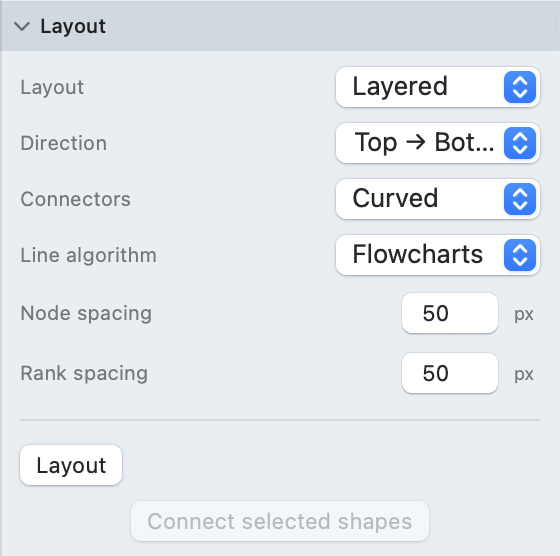
Auto-Layout Menu

Layout Options

Spacing

Control the space between elements:

  • Horizontal spacing: Distance between sibling nodes
  • Vertical spacing: Distance between hierarchy levels

Adjust these in the layout options panel or Inspector.

Alignment

Choose how nodes at the same level are aligned:

  • Center: Nodes centered within their level
  • Left/Top: Nodes aligned to the start
  • Right/Bottom: Nodes aligned to the end

The Sugiyama Algorithm

The auto-layout uses the Sugiyama algorithm (also known as layered graph drawing), which:

  1. Assigns layers: Places nodes in hierarchical levels based on connections
  2. Reduces crossings: Minimizes edge crossings between layers
  3. Positions nodes: Places nodes to minimize edge lengths
  4. Routes edges: Creates clean connector paths

This algorithm is ideal for:

  • Flowcharts
  • Organization charts
  • Dependency graphs
  • UML class hierarchies
  • State machines

Tips for Better Results

Before Running Auto-Layout

  1. Delete unnecessary connections: Extra edges increase complexity
  2. Group related items: Groups are treated as single nodes
  3. Consider direction: Think about which direction makes sense for your diagram

After Running Auto-Layout

  1. Fine-tune positions: Adjust individual elements as needed
  2. Check labels: Ensure labels are readable and not overlapping
  3. Adjust spacing: Increase spacing if elements feel cramped

Limitations

  • Cyclic graphs: Diagrams with circular references may not layout perfectly
  • Dense graphs: Very dense diagrams may still have some edge crossings
  • Custom positions: Layout will override any manual positioning
  • Aspect ratio: The algorithm doesn't consider canvas aspect ratio

Undo

If you don't like the result, press Cmd+Z to undo the layout and restore the previous positions.